If the process starts, ChainBreaker detects and closes it under the active rule.
Guide · application blocking
Blocking applications in Windows
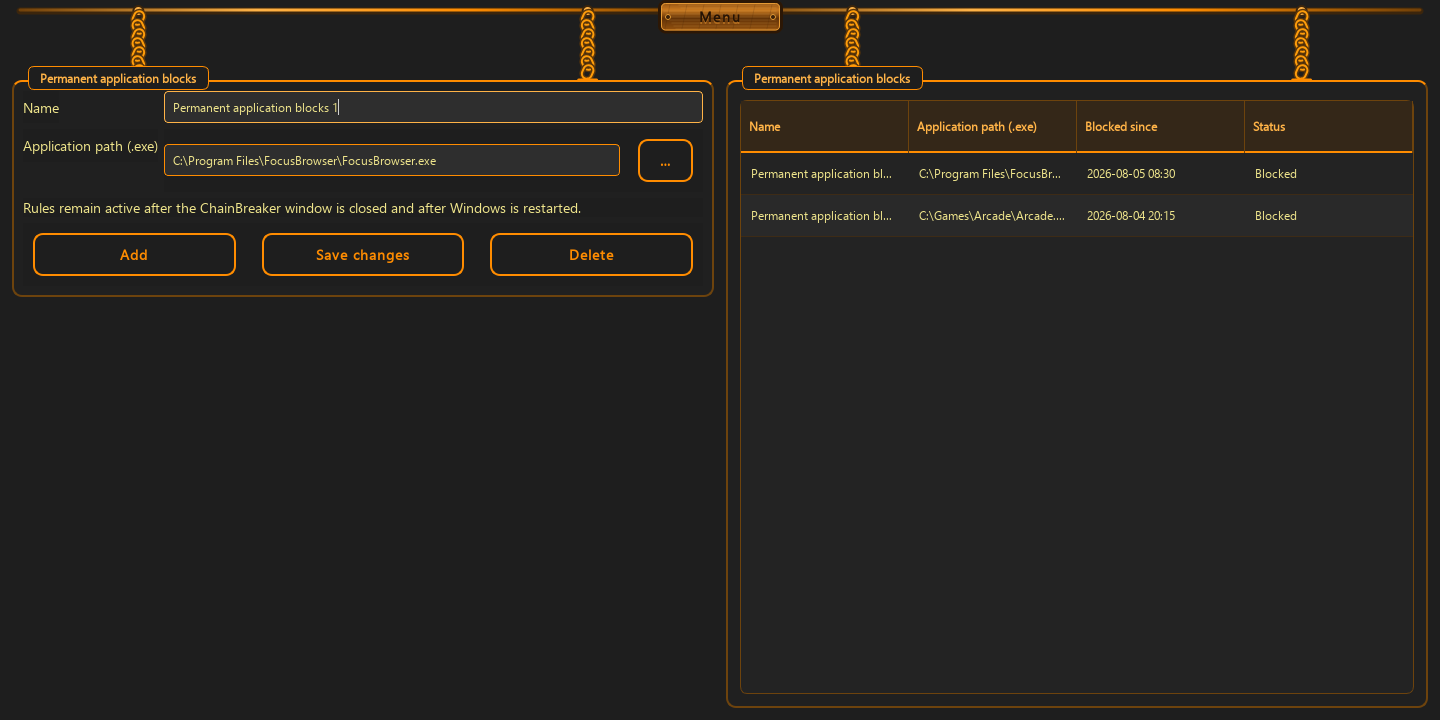
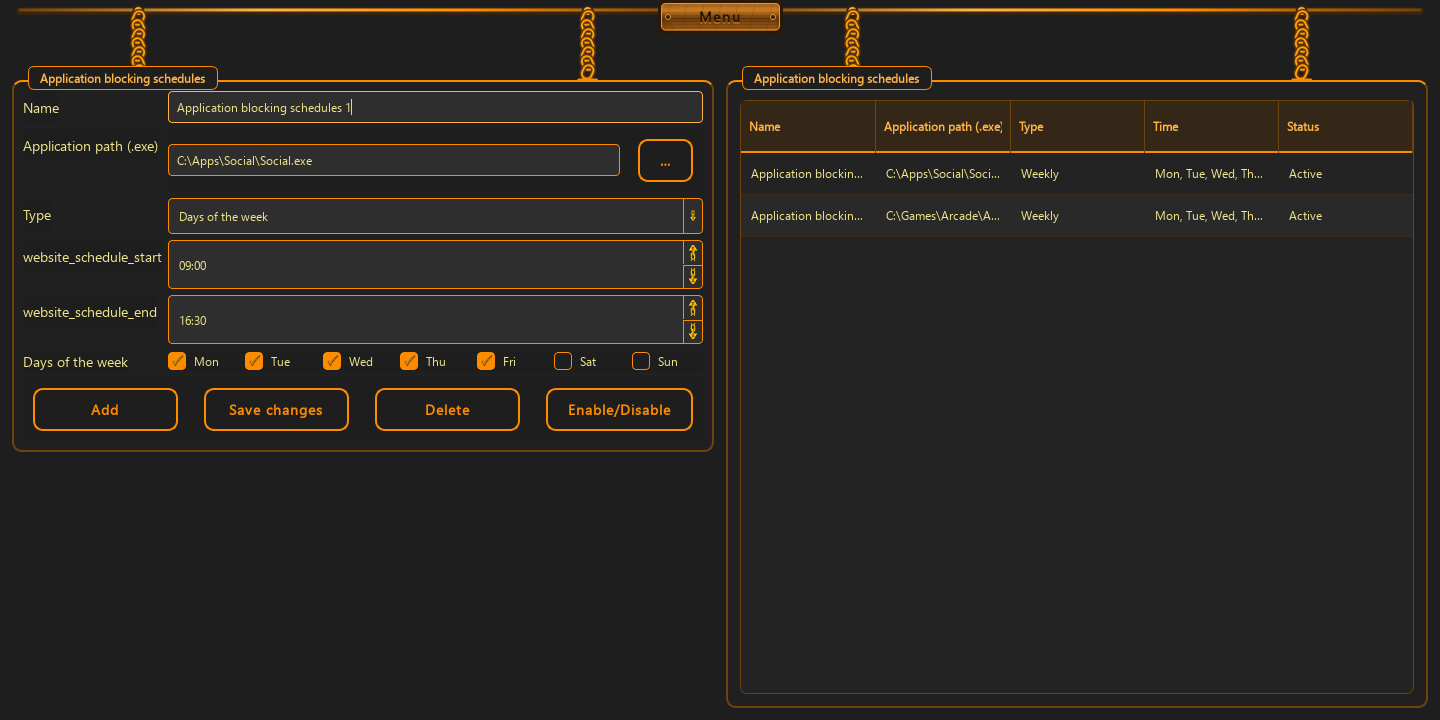
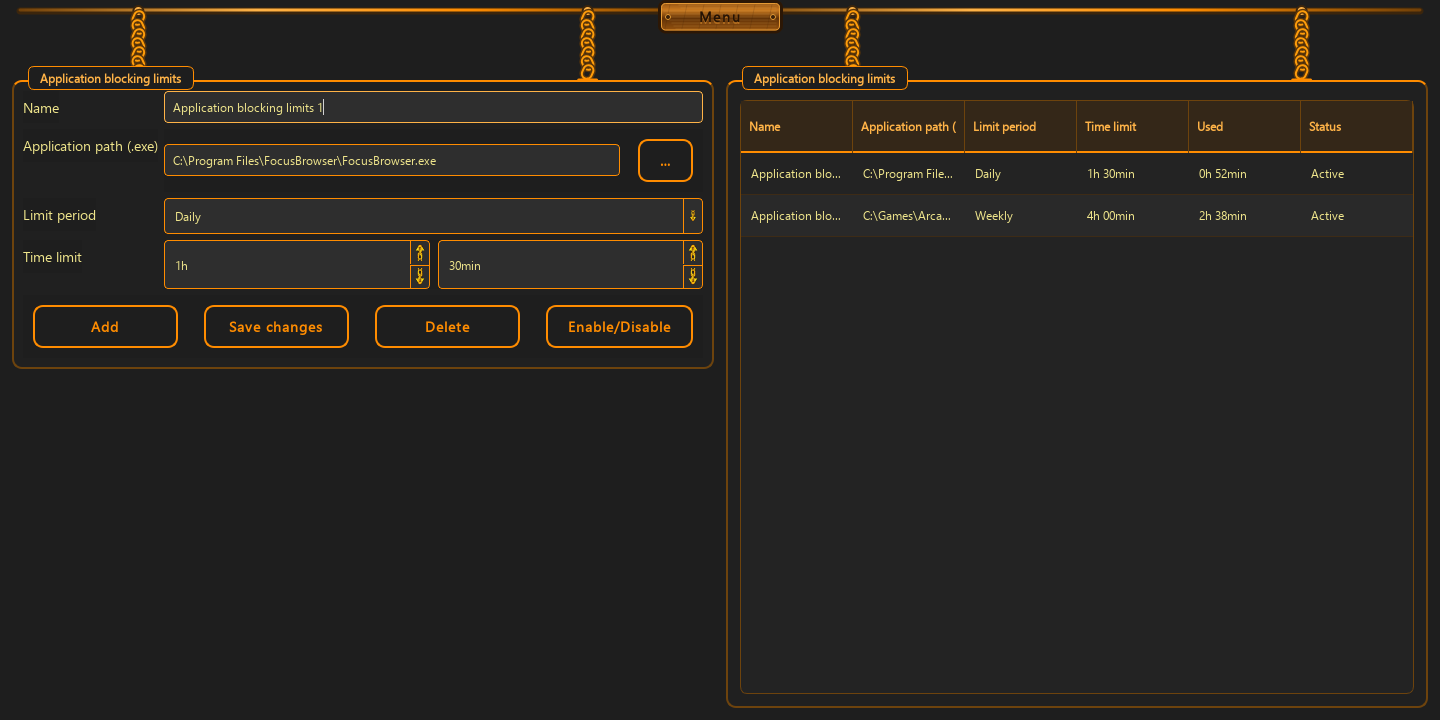
The current ChainBreaker app has three application-block types: permanent rules, scheduled rules, and blocks activated after a foreground-use limit is reached.
You can configure:
- a permanent block for a selected executable
- a schedule for chosen days and hours
- a daily, weekly, or monthly foreground-use limit
What happens on a launch attempt
The local guard detects a process that matches an active rule, closes it, and records the event. It then shows a 12-second Windows notification with the rule and reason.
- a permanent block names the responsible rule
- a schedule includes when the active window ends
- a limit includes the reached boundary and when the block ends
Choosing the right rule
Use a permanent rule for an app you do not want to open at all, a schedule for protected hours, and a limit when you want a defined amount of foreground use first.
- select the app by its executable file
- limit time grows while the app is used in the foreground
- events stay local and appear in Statistics
Good to know
Questions about the current version.
Yes. The Windows notification names the rule and, for schedules or limits, when it ends.
Yes. Saved rules are enforced locally again when Windows starts.
Guide · application blocking
Block the app where the reflex begins.
The rule carries out an earlier decision, while the notification explains why the app was closed.
Back to the homepage