Windows application · works locally

Break the digital autopilot.

ChainBreaker automates shutdown, display settings, time limits, and website and application blocking. Local statistics help you notice patterns while your rules guard boundaries in the background.

No accountLocal SQLite databaseRuns in the background
Real application screen
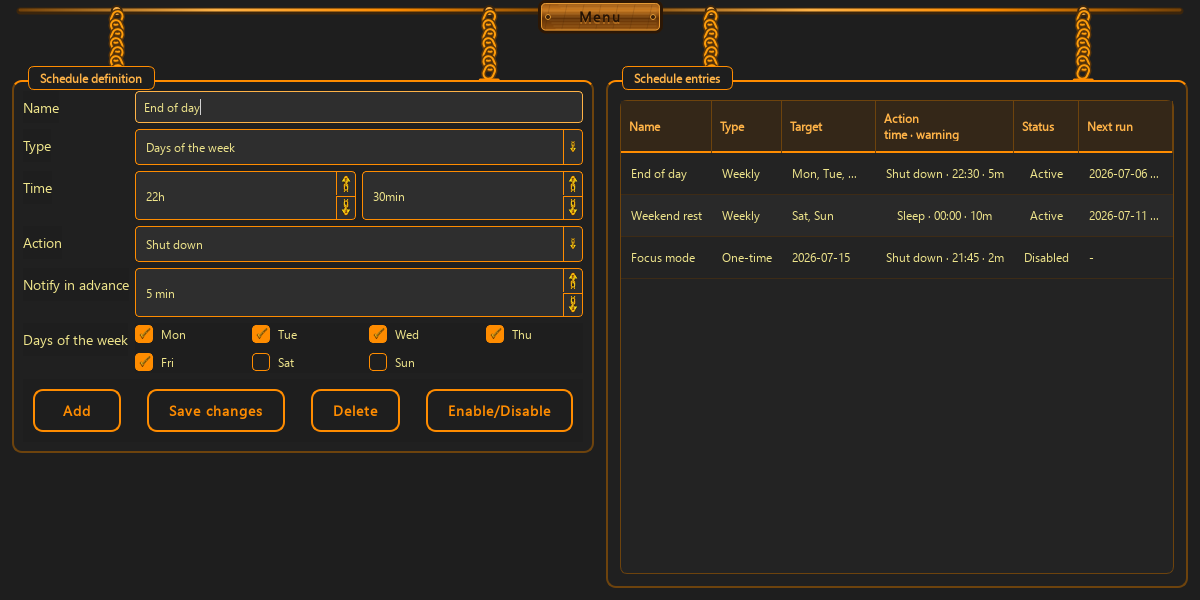
Shutdown and sleep rules
Power schedules · current desktop interface
100%local storage
0trackers
6rule areas
SQLitedatabase
Take care of yourself · on your own terms

Break the chain.
On your own terms.

ChainBreaker is a tool for taking care of yourself—configured by you, for you. It does not tell you how to live. It helps carry out decisions made in a calmer moment, before fatigue, impulse, or another hour in front of a screen.

No mockups or concept visuals

This is ChainBreaker.

These captures come from the real desktop application and change with your selected language.

Shutdown and sleep rules
01

Shutdown and sleep rules

Time, weekdays, action and advance notification.

Capture from the working application
05082026
ChainBreaker · 05.08.2026

Block apps. See what actually helps.

Permanent blocks, schedules and app limits help carry out a decision you made earlier. Statistics show events, configuration and change history locally—without judgement or uploading your data.

ChainBreaker Actual Windows notification · 12 seconds
Permanent application blocksApplication launch blocked

The application was closed by the permanent block “Permanent application blocks”. Application: C:\Program Files\FocusBrowser\FocusBrowser.exe

Application blocking schedulesApplication launch blocked

The application was closed by schedule “Application blocking schedules”, active until 2026-08-05 18:00. Application: C:\Apps\Social\Social.exe

Application blocking limitsApplication launch blocked

The application was closed because limit “Application blocking limits” (90 min) was reached. The block ends at 2026-08-06 00:00. Application: C:\Games\Arcade\Arcade.exe
Active ruleApplication blocking schedules
Block ownerWebsite blocking schedules
Ends at2026-08-05 18:00

Change or disable the indicated rule in ChainBreaker to restore access.

Real interface of the current applicationChainBreaker · 05.08.2026
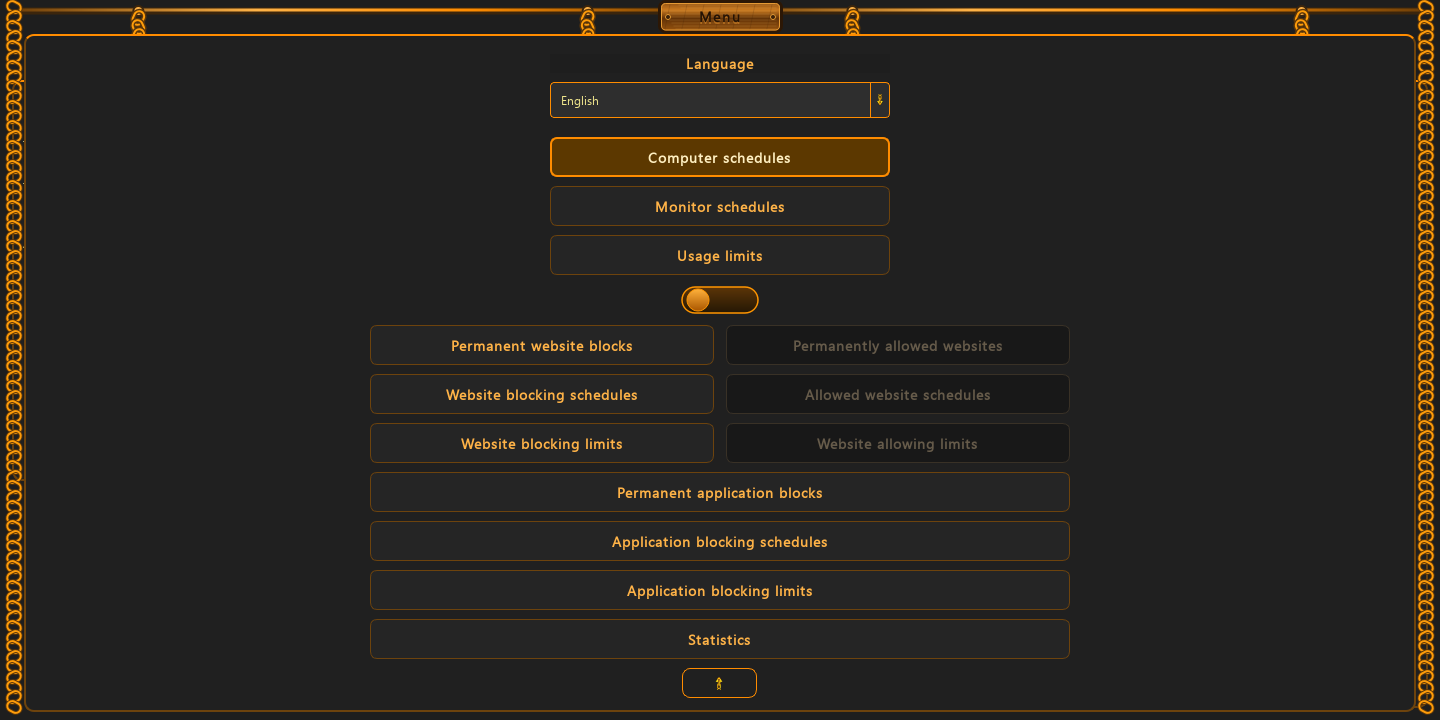
Application blockers and statistics are in the menu
01

Application blockers and statistics are in the menu

The menu has separate entries for permanent app blocks, schedules, limits, and Statistics.

01

Permanent application blocks

Rules remain active after the ChainBreaker window is closed and after Windows is restarted.

02

Application blocking schedules

Choose days and hours, or set a daily, weekly or monthly foreground-use limit for a specific application.

03

Application blocking limits

Choose days and hours, or set a daily, weekly or monthly foreground-use limit for a specific application.

04

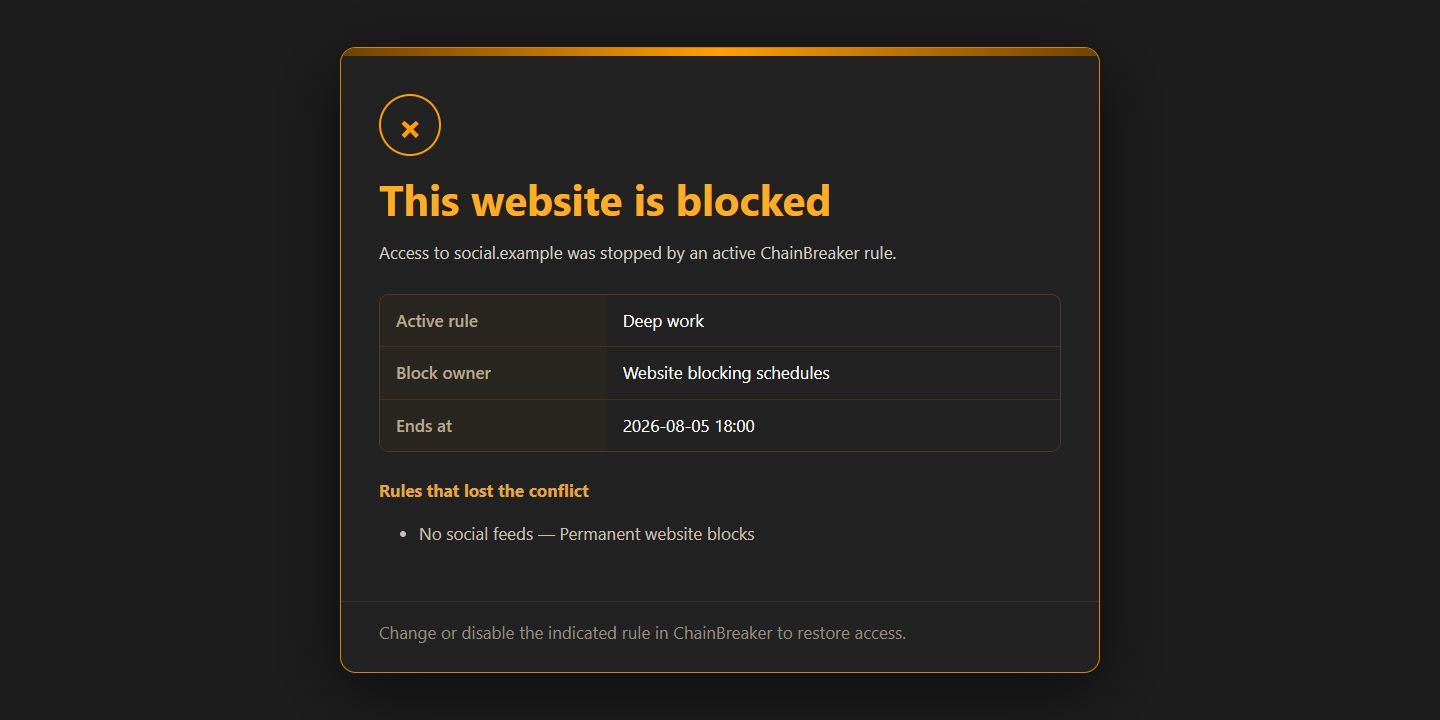
This website is blocked

The active tab opens a local page showing the domain, winning rule, decision source, and when it ends.

05

Statistics

Summary of the number of configured schedules, limits, and blocks.

06

Blocked application launches

See when a local rule stopped an application launch and which rule made that decision.

Rules and statistics stay localBlocks are resolved on your computer. Event and change history is there for you—ChainBreaker does not send it to third-party analytics.
Two real outcomes of an active rule

See what appears outside the main window.

These are not more settings. They are the screens you see while ChainBreaker carries out a rule you decided on earlier.

01

What you see when you open a blocked website

The active tab is redirected to a local 127.0.0.1 address. Instead of an empty error, you see the domain, active rule, and when it ends.

  • The page is generated locally and does not upload browsing history.
  • It shows the winning rule, its owner, and when the decision ends.
  • Lower-priority rules stay visible, so the outcome can be understood.
Real interface of the current application · ChainBreaker
What you see when you open a blocked website
02

Restarting does not reset used time

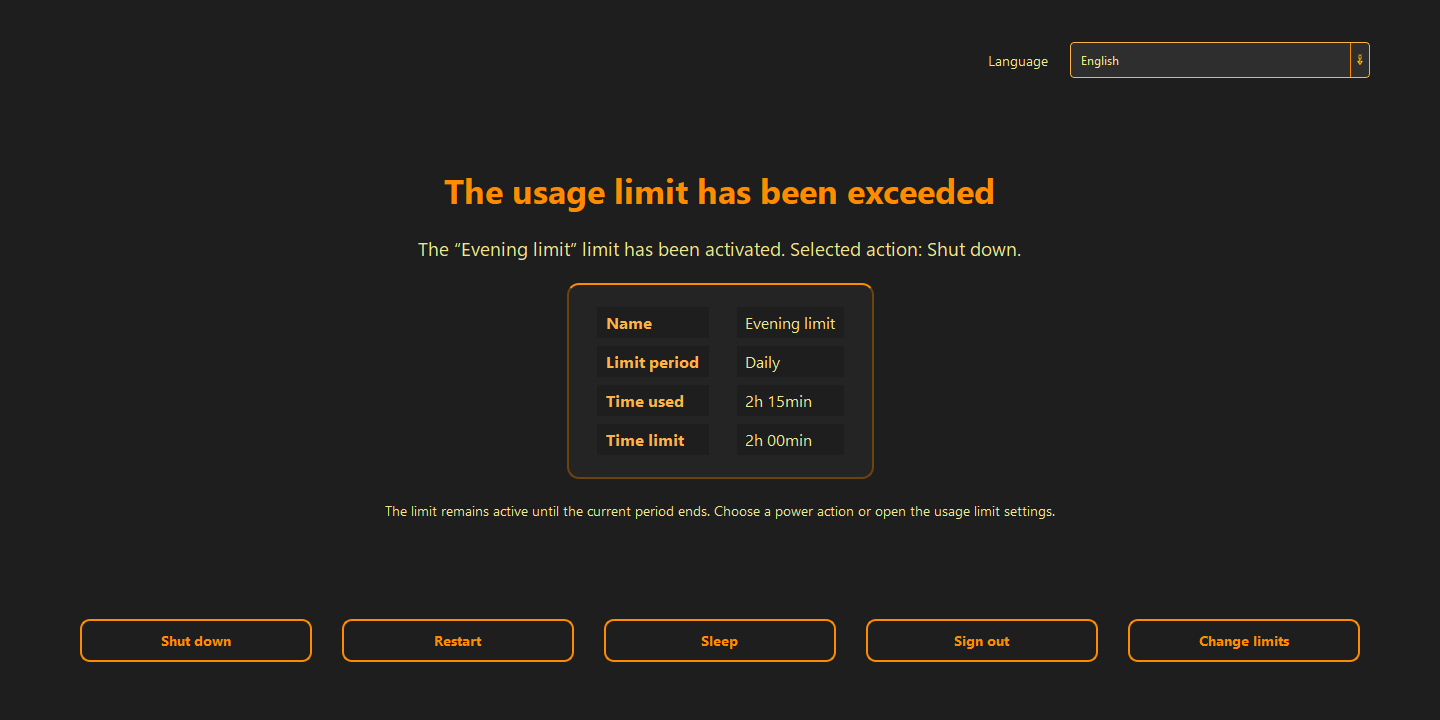
If a usage limit shuts the computer down, Windows opens with the exceeded-limit screen. The boundary remains active until the period ends.

  • You see the limit name, used time, boundary, and selected action.
  • You can shut down, restart, sleep, or sign out from the lock screen.
  • Changing limits is explicit—restarting does not bypass the rule.
Real interface of the current application · ChainBreaker
Restarting does not reset used time
Commitments that guard themselves

Cement a decision. Release it only deliberately.

A calm decision can be given lasting force. ChainBreaker cements one exact rule instance—not an entire category and not your other settings.

“Are you sure you want to break the promise you made to yourself right now?”

Your regional price is shown before you continue to Stripe

No confirmed payment means no release

  1. 01

    Choose one exact commitment

    It can be a schedule, limit, website block, or application block. The toggle applies only to the selected instance, identified by its own category and unique ID.

  2. 02

    Confirm that it becomes permanent

    A warning appears before anything is saved. Once confirmed, the instance cannot be edited, deleted, disabled, or enabled again. It remains in force after restarts and application updates.

  3. 03

    Breaking the promise is a separate decision

    ChainBreaker asks again whether you truly want to break your word and shows the exact price in your regional currency. Only a confirmed Stripe payment releases that one instance.

01

Closing the window cancels the action—payment never starts by itself.

02

No connection or no payment confirmation leaves the commitment cemented.

03

Only the paid instance is released; every other commitment stays unchanged.

04

This is a one-time micro-payment, not a subscription or automatic charge.

New since 17 July 2026

Boundaries that watch themselves.

ChainBreaker can now count active computer time and automatically change the monitor image after a boundary you set has been reached.

01

Daily, weekly and monthly limits

Set separate boundaries that reset every day, on Monday or at the beginning of a new month.

02

Only time you actually use counts

Keyboard and mouse inactivity longer than five minutes is not added to the counter.

03

An effect after the limit

Grayscale, lower brightness or a stronger hardware blue light filter can be enabled automatically.

04

The most restrictive boundary wins

When several active limits control the same setting, ChainBreaker chooses the most restrictive one. An active limit also takes priority over a regular monitor schedule.

Features available today

Rules for your computer, displays, Internet and time.

Current as of 5 August 2026: computer and display schedules, time limits, Internet and website rules, application blockers, and local statistics.

01

Computer schedules

Shut down or sleep the computer, restrict the Internet and restore access on selected days, times or a one-time date.

02

Monitor schedules

Change brightness, grayscale and blue light filtering automatically.

03

Usage limits

Daily, weekly and monthly boundaries based on active computer or browser time. After a limit, the app can change the display, restrict the Internet, sleep or shut down the computer.

04

Website rules in two modes

Block selected domains while normal Internet access remains available, or restrict the Internet and leave only the websites you need. Both modes include permanent rules, schedules and time limits.

05

Boundaries that survive a closed window

The local network guard and background process maintain active rules after the window is closed and after Windows restarts.

06

Locally stored data

Schedules are kept in a local SQLite database. Your data remains yours alone—the app never shares it with anyone.

07

Permanent application blocks

Rules remain active after the ChainBreaker window is closed and after Windows is restarted.

08

Statistics

Summary of the number of configured schedules, limits, and blocks.

Why schedule your display

Fewer stimuli. More room to rest.

01

A blue light filter for tired eyes

The blue light filter reduces the screen’s blue component, warms the image and helps reduce eye strain during evening computer use.

02

Grayscale and a calmer dopamine system

Grayscale puts less strain on the dopamine reward system: it reduces the appeal of colorful stimuli and discourages empty, isolated consumption. It becomes easier to step away from the screen and experience the real world more fully.

03

Easier to let go

A calmer screen can help you end the session, do something else, go to bed earlier and give yourself a chance at longer, fuller sleep.

How it works

Three steps.
One rule.

Choose an area, define a boundary and enable the rule. ChainBreaker stores it locally, resolves priorities and guards it in the background.

Schedules stay on your computerThe app saves them in a local SQLite database.
  1. 01
    Choose an area

    Computer, display, usage time, Internet access or individual websites.

  2. 02
    Define your boundary

    Choose the time, days, time limit, domain and the action that should follow.

  3. 03
    Enable the entry

    The active rule is handled in the background.

The ChainBreaker philosophy

The ChainBreaker philosophy

We have a limited amount of free will that renews each day. Let us preserve it by automating the need to fight ourselves every day. Let us give ourselves the chance to spend it on what comes next.

01

Freedom is, in truth, the choice of our own bonds — the ones that leave us the strength and time to live as we genuinely want.

02

Time is a currency that is forever running out. There is no way to earn more of it. So do not let it be taken from you unnoticed. Let us make sure you spend this resource on exactly what you want. As consciously as you want.

03
Privacy principle
“An app built to restore control should not take control of your data.”
No analyticsNo accountNo activity data is uploadedLocal database
7 days to try every feature

Try ChainBreaker without feature limits.

Download the same installer delivered after purchase. The trial includes every feature, binds to one computer using TPM or a fallback MAC fingerprint, and starts only after the first verified installation.

  1. 01

    Remaining time stays visible in the interface, window title, and Windows tray menu.

  2. 02

    After 7 days, schedules, limits, and website and application blocks stop running. Your configuration remains saved and can resume after purchasing the full version.

  3. 03

    You can add a review from Statistics in both the trial and paid versions. The review button remains active after the trial ends.

Direct purchase for Windows

A one-time license, not another subscription.

Pay securely with Stripe and download the EXE installer as soon as the payment is confirmed.

Digital edition · EXE

Price at checkout

  • App for Windows 10 and 11
  • One-time purchase with no subscription
  • EXE download after payment confirmation
Buy for this deviceStart the purchase from ChainBreaker on the computer where the app will be installed. The app confirms the device without exposing its MAC address to the browser.
Buy for this device One-time purchase · local payment methods, cards and wallets are available in Stripe Checkout.
Reviews from the app

ChainBreaker user reviews

Authentic feedback sent from activated installations. The server verifies the licence mode and usage time.

Trial

test triala odrazyu po pobraniu.

Guides

Twelve guides for the current app.

From the 7-day trial, reviews, and cemented commitments to website and application blocks, the post-restart limit screen, and local statistics. Each guide explains exactly what the feature does.

Good to know

Questions about the current version.

Yes. Schedules and settings are stored locally and rule execution does not require a permanent connection.

The app shows a notification with the rule name, scheduled time and a countdown.

Yes. Closing the window can hide it in the tray while schedules remain active.

It counts active computer time. Keyboard and mouse inactivity longer than five minutes is not added to the counter. The result stays in the local SQLite database.

No. For website limits it locally reads only the active domain name from the address bar of a supported browser. It does not store history, page content, URL paths, queries or window titles.

The website rules view shows the winning rule, its source, end time and the lower-priority rules that did not change the result.

In blocking mode, the Internet remains available and selected domains are cut off. In permanently allowed mode, Internet access is restricted and selected domains become exceptions that keep working. The switch also changes the corresponding schedules and limits.

The current desktop application supports Windows 10 and Windows 11.

Direct from the developer

Break the chain.
On your own terms.

Buy ChainBreaker through Stripe and download the Windows installer.

Buy for this device